

Gaming overclocking guides share a common assumption: you want the highest single-core clock speed your CPU can sustain for a few seconds during a benchmark. For gaming, that assumption holds. For Blender renders, kernel compiles, and FEA simulations, it does not. Applying gaming OC methodology to professional workloads can make your performance worse, not better.
The operation is the same: you are raising the CPU's clock frequency above factory specification in firmware. But what you are optimizing for, how you validate stability, and which thermal behaviors matter diverge significantly once your workload runs for hours rather than minutes.
This guide covers rendering (Blender Cycles), compilation (GCC, Clang, Rust), and CAD (SolidWorks, Fusion 360): what overclocking does to each workload specifically, when it helps, when it hurts, and how to get the AMD and Intel settings right for professional use under long-running workloads.
TL;DR
- Rendering: CPU overclocking can reduce Blender Cycles render time if the CPU maintains higher effective clocks without thermal or power throttling. Test the same scene at stock and overclocked settings.
- Compilation: CPU-bound parallel builds can benefit from higher sustained clocks, but memory, storage, linking, and serial build stages reduce the real gain. Run the complete test suite before using an OC for production builds.
- CAD: Higher single-core performance can make some interactive operations faster. A 2017 SolidWorks test measured an average 5.9-7.9% gain on its specific system, but you should not expect the same result from every CPU or CAD workload.
- Simulation: Do not use an unverified overclock for production FEA or CFD work. Stability and repeatability matter more than a small speed gain.
- AMD: PBO and Curve Optimizer results depend on the CPU, motherboard, cooling, firmware, and workload. There is no universally stable negative offset.
- Intel: XTU 7.14 supports unlocked 14th Gen Core processors and older models. XTU 10.0 supports unlocked Core Ultra Series 2 processors and newer models. AI Assist is currently limited to the Core i9-14900K, 14900KF, and 14900KS.
- Validation: Use a sustained benchmark as the first gate. The real gate is your actual workload, run long enough to expose thermal or stability problems.
Gaming Overclocking Optimizes for Burst: What Changes for Professional Workloads
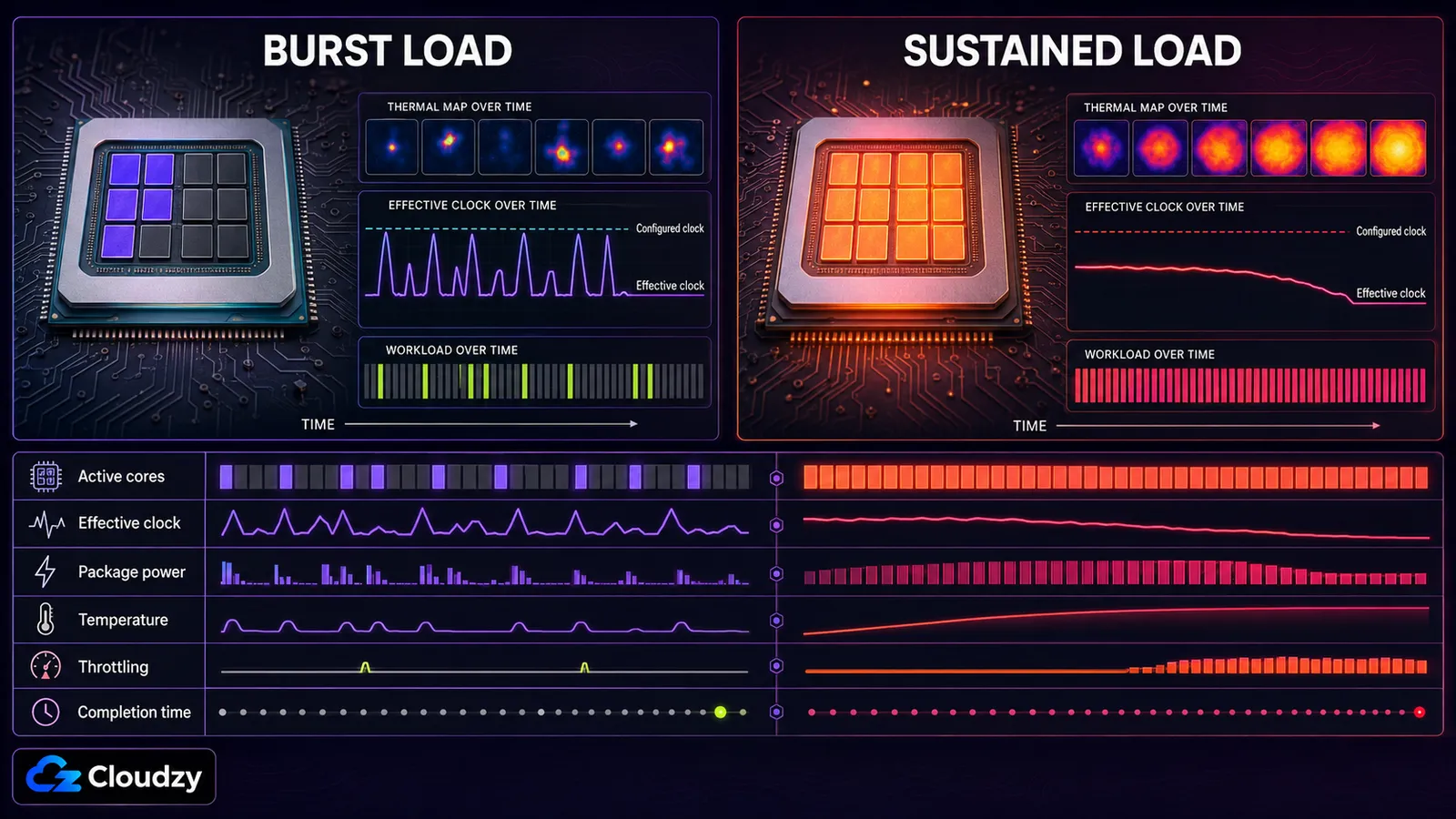
Gaming workloads often move between lightly threaded activity and short periods of heavier CPU demand. Rendering, large parallel builds, and engineering solvers can keep many cores busy long enough for cooling, power limits, current limits, and motherboard settings to determine the actual sustained clock.
A CPU's advertised maximum boost clock is a peak frequency reached under specific workload, temperature, and power conditions, often on only one or a few cores. There is no fixed amount of time that maximum boost lasts and no universal percentage by which the clock must drop. Modern AMD and Intel CPUs adjust frequency continuously according to workload and available headroom.
That is why the stock baseline matters more than the advertised boost clock. Record effective clocks, package power, temperature, throttling indicators, and completion time while running the real workload at stock settings. Repeat the same test after overclocking.
A short benchmark may pass before the cooler, motherboard power delivery, and case air reach steady-state temperature. An aggressive OC can perform worse than stock once throttling or instability appears.
Synthetic benchmarks are the first stability gate. The final gate must be the professional workload, compared against a repeatable stock baseline.
Rendering: Blender Cycles and CPU Renderers
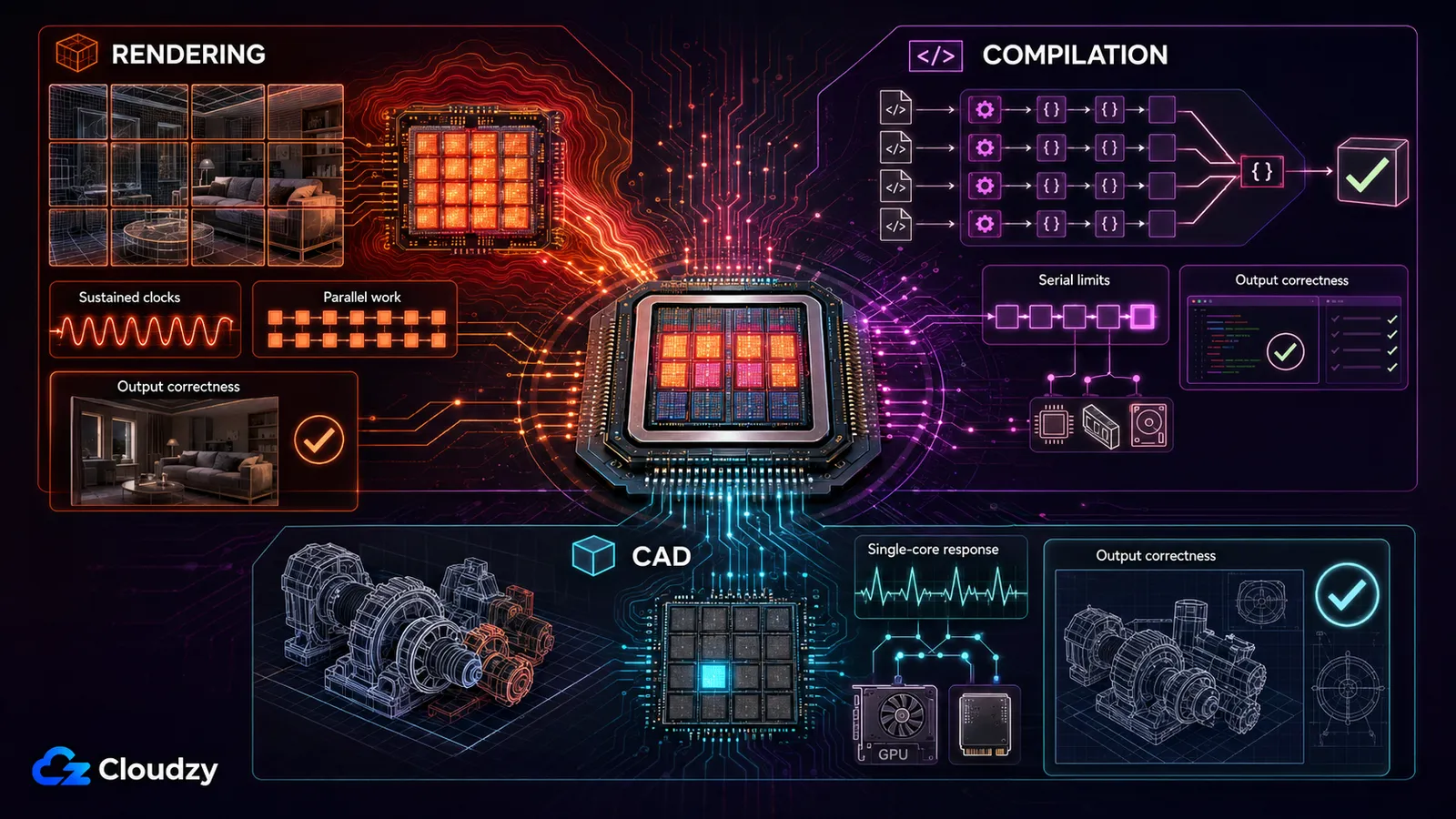
CPU rendering in Blender Cycles often benefits more from additional cores than from a small per-core clock increase. An overclock can still help, but only when the CPU maintains higher effective clocks without thermal or power-limit throttling. If it slows down after heat builds up, the same render can finish later than it did at stock settings.

How Blender Uses Your CPU
Blender Cycles can distribute CPU rendering across the available render threads, but scaling is not perfectly linear. More cores and higher sustained clocks increase throughput, while scene complexity, memory behavior, render settings, and scheduling overhead reduce the gain. If throughput rises by a sustained 10%, render time falls by about 9.1%, not a full 10%. The number that matters is the effective clock maintained throughout the same scene, not the multiplier entered in the BIOS.
Cycles can also use optimized vector instruction paths that create a different power and thermal profile from gaming. Some Intel CPUs and motherboards expose AVX-related clock controls, but there is no universal AVX offset that works for every system. Treat it as model-specific tuning and validate it with the actual render.
When OC Helps Rendering
On a well-cooled system with genuine thermal headroom, a conservative OC may reduce CPU render time. Keep it only when all three conditions are true:
- The CPU completes a sustained render without thermal or power-limit throttling.
- Effective all-core clocks remain higher than the stock result during the same scene.
- The render finishes faster and produces the expected output.
Check the manufacturer's specification for the maximum operating temperature of your exact CPU. Do not apply one AMD or Intel temperature limit to every model. The same rule applies to AVX offsets: if your CPU and motherboard expose the control, adjust it in small steps and validate every change against the actual workload.
When OC Hurts Rendering
Thermal or power-limit throttling is the failure mode. Instead of using one temperature threshold for every AMD or Intel CPU, check the maximum operating temperature specified for your exact model and monitor HWiNFO's thermal- and power-throttling indicators. If the OC produces lower effective clocks or a longer render time than stock, the overclock is hurting performance.
This can get worse during a multi-hour render as the cooler, motherboard power delivery, and case air reach steady-state temperature. An OC that looks fine at the start may throttle later in the job.
Pro Tip: Run a 30-minute render at stock settings and record HWiNFO's all-core clock and total render time. Then apply your OC and run the same render, recording the same metrics. If OC produces a faster render at similar or lower temperatures, keep it. If temperatures spike and render time is the same or longer, the OC is hurting you.
Validating an OC for Rendering
Start with a sustained multi-core benchmark as the first stability gate.
- A configurable minimum runtime can expose falling clocks or scores as the system heats up, as explained on Maxon's Cinebench benchmark page. Monitor effective clocks, package temperature, package power, and throttling indicators throughout the test.
- Next, render the same Blender scene at stock and overclocked settings. Use a scene long enough for the cooling system and case temperature to reach steady state. Thirty minutes is a useful starting point, but a four-hour production render may require a much longer validation run.
- Compare completion time, effective clocks, temperatures, throttling indicators, and output correctness.
Passing Cinebench does not prove Blender stability because the two workloads do not create exactly the same power, memory, or instruction profile. The render job is the final validator.
Compilation: GCC, Clang, Rust, Kernel Builds
A stable, moderate CPU overclock can reduce compilation time when the build is mainly CPU-bound and exposes enough parallel work. The real gain will usually be smaller than the clock increase because preprocessing, linking, storage access, memory bandwidth, dependency ordering, and serial build stages do not all scale with CPU frequency. A sustained 10% performance increase produces a theoretical 9.1% reduction in completion time before those limits are included.
Parallel build tools such as Ninja can keep many cores active when the project contains enough independent work, and so can GNU Make with a job count matched to the core count: make -j$(nproc)
Measure the complete clean build instead of assuming that clock speed alone predicts the result.
An unstable CPU or memory configuration can cause crashes, compiler errors, filesystem corruption, or incorrect calculations. However, GCC and Clang optimization passes should not be described as universally AVX-intensive, and subtle incorrect binaries should not be presented as the routine result of a marginal OC. The practical point is simpler: a production build machine requires validated hardware stability.
Pro Tip: Validate the OC by performing a clean build of the actual codebase and running the complete automated test suite. Compare artifact checksums only when the project supports reproducible builds. Normal binaries may contain timestamps, paths, build IDs, or other changing data that make checksum comparison unreliable.
AMD and Intel Settings for Compilation
For AMD: On supported CPUs, PBO and Curve Optimizer can change sustained frequency and voltage behavior. A more negative Curve Optimizer value is not automatically better or more stable under compilation. Excessive undervolting can create workload-specific errors even when gaming appears stable. Make small adjustments and reduce the negative offset's magnitude if errors appear.
For Intel: On an unlocked CPU with a compatible chipset, use the XTU version specified for that processor generation or make conservative changes through the BIOS. AVX-offset support and behavior vary by CPU and motherboard, so there is no universal value to recommend. Run a clean build and the full test suite before treating the configuration as production-stable.
CAD: SolidWorks, Fusion 360, Siemens NX
Many interactive SolidWorks operations depend heavily on one or a few CPU threads, although the balance between CPU, GPU, storage, and network performance changes by operation. A Puget Systems' 2017 SolidWorks study measured an average 5.9-7.9% improvement after overclocking its Core i7-7700K test system to 4.7-4.8 GHz. That is a historical result from one hardware and software configuration, not a guaranteed gain for current systems.
How CAD Uses Your CPU
SolidWorks operations such as feature-tree rebuilds, mate calculations, and parts of file opening and modeling often depend strongly on single-threaded CPU performance. Viewport performance also depends heavily on the GPU, graphics driver, display settings, and assembly complexity, so it should not be treated as a purely CPU-limited task.
A higher sustained single-threaded clock can improve CPU-bound interactive operations, but the result must be measured inside the specific CAD application. Fusion uses both local and cloud computation depending on the operation, so local CPU overclocking may help some modeling tasks while having little effect on jobs processed by Autodesk's cloud services.
The Simulation Accuracy Risk
For FEA and CFD work, an unstable CPU or memory configuration can cause crashes, failed solver checks, or incorrect calculations. A completed run alone is not proof that the hardware configuration is reliable.
Warning: Production engineering simulations depend on repeatability and validated results. Keep the system at stock settings unless the overclock has been tested against known-good reference cases and the organization has explicitly accepted the risk. If you need more simulation performance, prioritize the right core count, memory capacity, and memory bandwidth before raising clock speed.
For interactive CAD work on a machine not used for production simulation, a validated single-core-focused OC may improve CPU-bound operations. Open your heaviest assembly, run a feature rebuild, and repeat the same viewport workload at stock and overclocked settings. That comparison matters more than a synthetic score.
For software-specific GPU selection guidance, see Cloudzy's GPU guide for CAD.
AMD vs. Intel: Getting the Settings Right for Professional Workloads
For professional workloads, both AMD and Intel tuning controls are model-specific. PBO and Curve Optimizer can change AMD boost behavior, while XTU exposes supported Intel controls. Neither route guarantees stability, and fixed AVX offsets do not transfer safely between CPUs, motherboards, cooling systems, or workloads.
AMD: PBO + Curve Optimizer
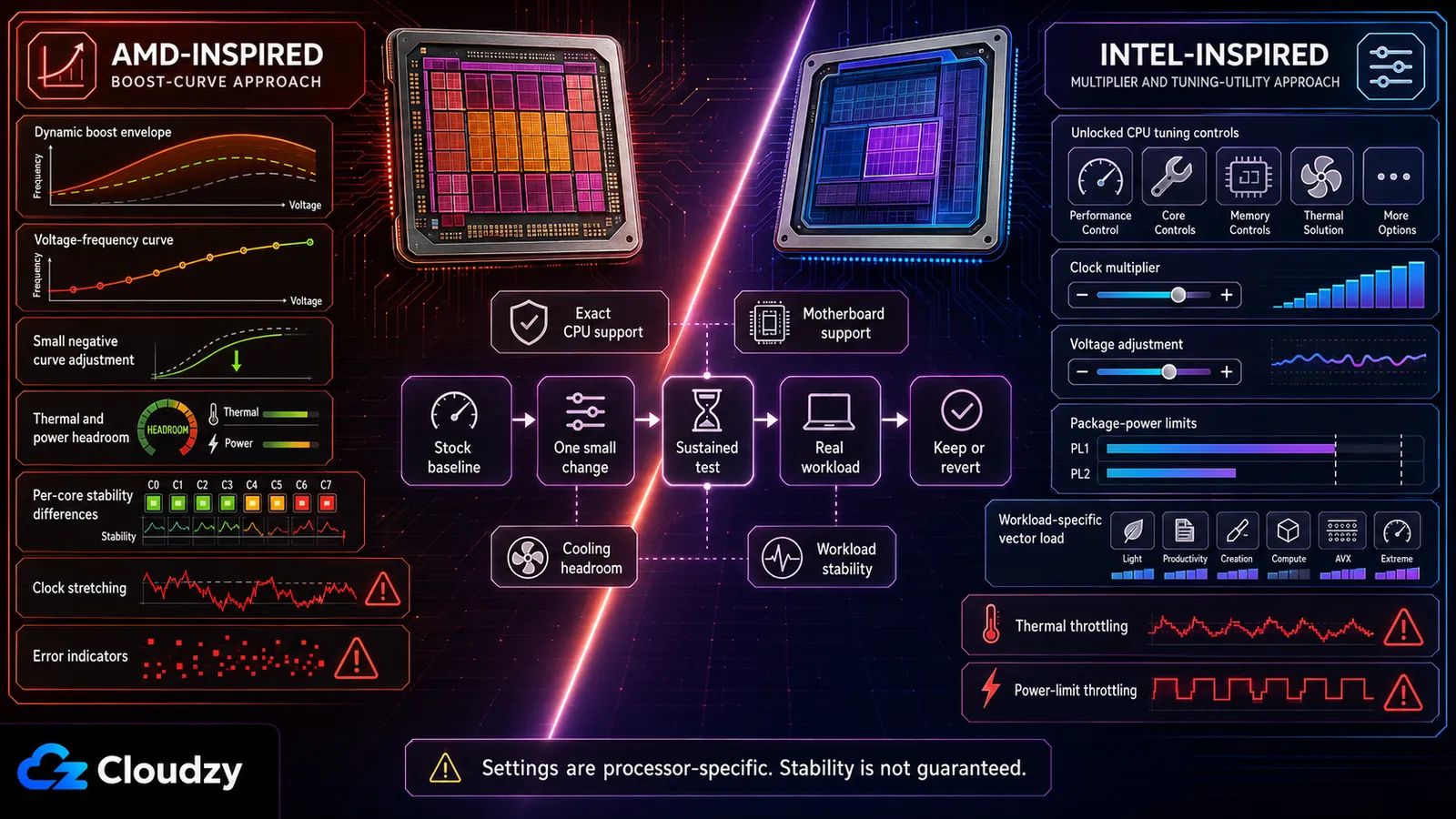
Based on AMD's description of Precision Boost Overdrive, PBO allows a supported CPU to operate beyond its default socket power and current limits, up to the limits exposed by the motherboard and cooling environment. It does not remove every limit, and it is not the same as stock Precision Boost behavior.
Curve Optimizer shifts the CPU's voltage-frequency curve. A negative value requests less voltage at a given point on that curve. If the individual CPU remains stable, this may improve efficiency and create more boost headroom. The available controls vary by processor.
A conservative workflow looks like this:
- Record a stock workload baseline.
- Enable PBO only if the CPU and motherboard support it.
- Apply a small Curve Optimizer adjustment.
- Test sustained load, lightly threaded work, idle transitions, and the real professional workload.
- Reduce the offset's magnitude if you see errors, restarts, clock stretching, or lower performance.
Per-core tuning may produce a better result than one all-core value, but it also requires much more validation. Do not assume that preferred cores always tolerate larger negative offsets or promise a fixed performance gain. Silicon quality, cooling, firmware, motherboard limits, and workload behavior determine the result.
Intel: XTU Compatibility and Workload Validation
XTU 7.14 supports unlocked 14th Gen Core processors and older models, while XTU 10.0 supports unlocked Core Ultra Series 2 processors and newer models. Both require a compatible platform, including a motherboard chipset that supports full overclocking. Check your exact model before installing, against Intel's XTU download and compatibility page.
Intel lists AI Assist as a preview feature for the Core i9-14900K, 14900KF, and 14900KS. These CPUs belong to the XTU 7.14 compatibility branch, not XTU 10.0. The tool proposes settings for the individual system, but those settings still require thermal, stability, and workload testing, as explained on Intel's AI Assist for XTU support page.
For manual tuning, avoid universal multipliers, voltage values, voltage increments, or AVX offsets. Stable settings depend on the exact CPU, motherboard, BIOS, cooling system, and workload. Record a stock baseline, make one conservative change at a time, and compare effective clocks, throttling indicators, completion time, and output correctness.
Validation Methodology for Professional Workloads
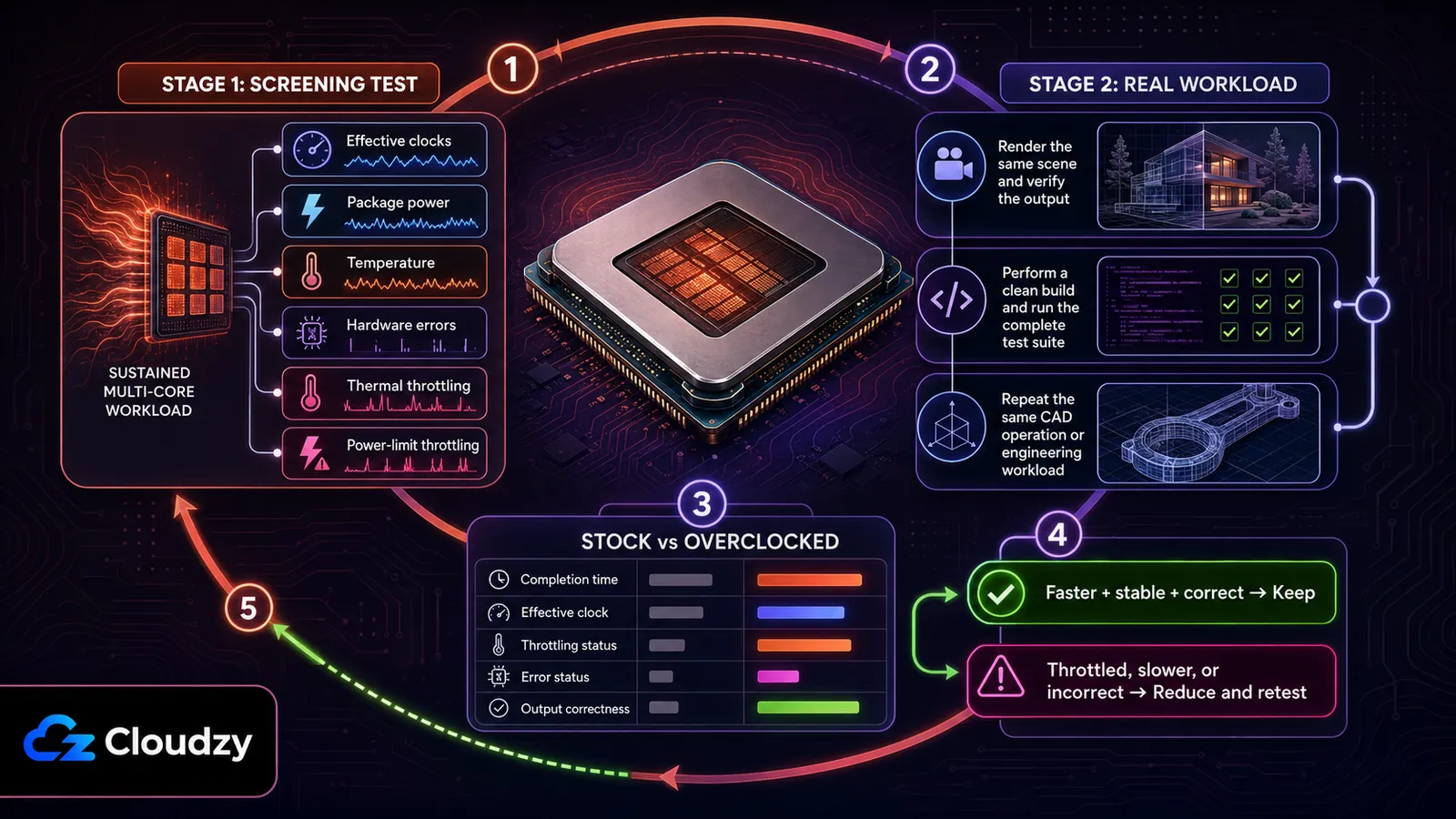
Professional-workload validation needs both a repeatable screening test and the actual workload. Neither proves permanent stability, but together they expose more problems than a short benchmark alone.
Stage 1. Screening test: Run a sustained multi-core benchmark while monitoring effective clocks, package power, temperature, hardware-error reporting, and thermal- or power-limit throttling. Use the documented maximum operating temperature for your exact CPU instead of a universal AMD or Intel threshold.
Stage 2. Workload test: Run the actual render, build, or CAD operation long enough to reproduce its normal thermal behavior. Compare it with an identical stock baseline. The overclocked system should finish faster, remain free of reported errors and throttling, and produce the expected output.
For compilation, run the complete test suite and compare artifacts only when the build is reproducible. For rendering, use the same scene and settings. For CAD, repeat the same assembly, rebuild, or simulation procedure. If the system fails either stage, reduce the multiplier, voltage adjustment, power limits, or Curve Optimizer offset magnitude as appropriate. Then repeat both tests.
When NOT to Overclock for Professional Workloads
Avoid overclocking when you are running production FEA or CFD simulation, using render-farm or shared infrastructure, working with limited cooling headroom, or tuning a laptop whose firmware and cooling design do not support it.
Production simulation: The floating-point accuracy risk from any marginal instability is unacceptable for engineering simulation used in design decisions. Run at stock.
Render farms and shared infrastructure: At scale, reliability and repeatability matter more than a small per-node clock increase. Even a low error rate becomes expensive across dozens or hundreds of machines. Increase throughput through the right CPU selection, node count, scheduling, and cooling before considering per-node overclocking.

On-demand cloud VPS on AMD EPYC processors with NVMe storage.
Buy Cloud VPS HourlyInsufficient cooling: If the stock system already reaches thermal or power limits during the real workload, overclocking is unlikely to produce a sustained gain. Improve cooling or reduce the workload's power limits before attempting further tuning.
The practical default: Leave the CPU at stock settings and allow AMD Precision Boost 2 or Intel Turbo Boost to manage frequency inside the processor's normal operating framework. PBO is not the same as stock Precision Boost, and XTU is a tuning utility, not a default boost mode. Use either only when you can complete the full validation process described above.
Frequently Asked Questions
Does Overclocking Help Blender Rendering?
It can, but only when the CPU maintains higher effective clocks without thermal or power-limit throttling for the full render. Compare the same scene at stock and overclocked settings while monitoring clocks, temperature, power, and completion time. If the OC throttles or finishes later, it is not helping.
Will Overclocking Speed Up My Compilation Times?
It can when the build is mainly CPU-bound and has enough parallel work, but the gain is usually smaller than the clock increase. Validate with a clean build and the complete test suite. Compare checksums only when the project supports reproducible builds.
Is CPU Overclocking Safe for SolidWorks or CAD?
For interactive CAD work, a validated OC may improve CPU-bound operations, but there is no universal 5-8% gain. For production FEA or CFD simulation, the safer default is stock settings because reliability and repeatability matter more than a small speed increase.
What Is the Difference Between AMD PBO and Intel XTU for Professional Workloads?
AMD's PBO and Curve Optimizer modify boost limits and the voltage-frequency curve on supported Ryzen CPUs. Intel XTU provides tuning controls for compatible unlocked processors, while AI Assist proposes settings for the Core i9-14900K, 14900KF, and 14900KS. XTU 7.14, not XTU 10.0, is the compatible branch for those 14th Gen processors. Neither approach guarantees stability or is automatically safer than manual tuning. Both require model-specific thermal and workload validation.



Discussion
Comments
Sign in to join the discussion.